Menu
Corporate

FNB Pay

Pay and get paid anywhere, any way. Make and receive payments with ease. Plus, get paid using your smartphone and FNB App. Pay in-store or online with your virtual card, view bills, send payment requests, get paid with SpeedeeApp®, and more.
Call me back
FNB Pay

A new experience

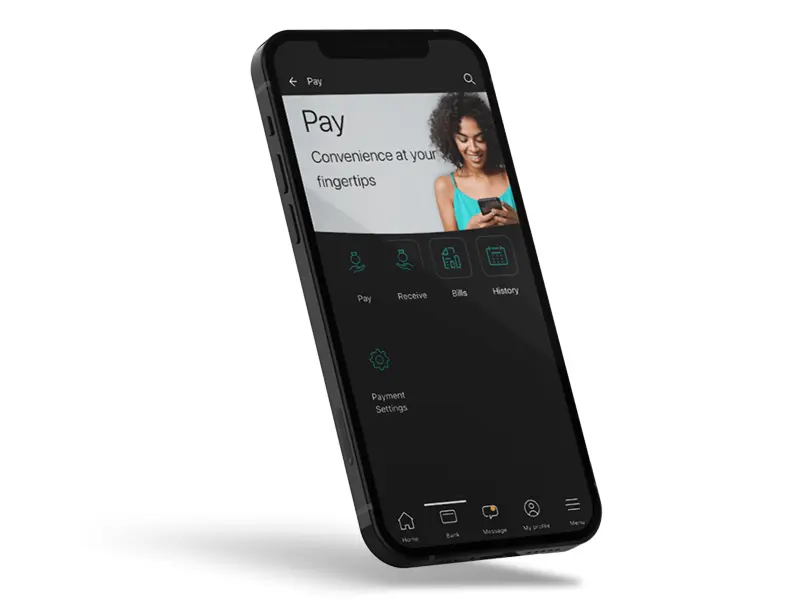
Pay, our new and refreshed payments platform is the start of the journey towards a simplified and cohesive payments experience. Navigate through the new Pay and find all payment solutions, history and settings on a single platform.
A new experience
Making payments easier
Explore our range of payment solutions available on the FNB App.
Payment Request
Payment Request
A request from a sender asking a potential payer for payment which contains all the information needed to make a payment. This includes any PayShap request received from a customer at another bank. Share either your account number, cellphone number or your ShapID with the sender to receive a Payment Request.
PayShap
PayShap
Make or receive instant payments easily and safely through banks including FNB. Register your cellphone number with FNB to get your ShapID. e.g. cellphonenumber@FNB to receive money when you give someone your registered ShapID. For a business, register a Shap Name using the business name e.g. ABCstore@FNB. Pay another person or business using their ShapID or Shap Name. PayShap payments can also be made using bank account details without a ShapID.
Instant Payments
Instant Payments
Pay someone in real-time to participating banks* in South Africa, using only their card number. From as little as R7 via your banking app.
ChatPay
ChatPay
Customers can pay or request payment from any FNB or RMB customer using the FNB App's chat feature and the other customer's cellphone number. They can select Pay, then choose ChatPay at no additional cost.
Bill Payments
Bill Payments
Go to Pay > Bills and search for a bill via the payment provider option and make a payment from any FNB Card or FNB Virtual Card.
Send money using eWallet
Send money instantly to anyone with a valid South African cellphone number. Transfer funds from your eWallet to your FNB Account via the FNB App.

Payment resources

Benefits of Bill Payments
  • Pay your bills (EasyPay or Pay@ bills for municipal rates, electricity, taxes etc.) from your banking app or via cellphone banking.
  • Secure and seamless payments as there is no need for you to manually capture card details.
  • Multiple billers can be located and paid on one trusted platform. No need for the customer to have multiple apps.
  • You can earn more eBucks when completing card payments.
  • Simple and intuitive customer experience.
  • Complete control over outstanding bills and payments.
FNB Global Virtual Card
Add a virtual card to your FNB Global Debit card for more security. Spending when travelling is more secure with a virtual card - whether shopping online or at merchants. Simply load your global virtual card onto a partner wallet so you can easily tap to pay abroad and earn up to 4% back in eBucks.
FNB Global Virtual Card
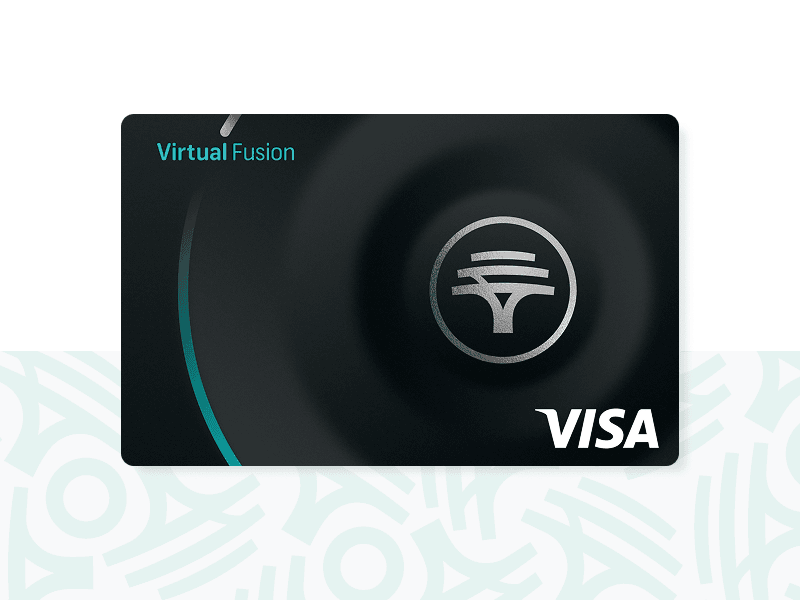
FNB Virtual Card

FNB Virtual Card

Make in-store payments seamless, contactless and cashless with Apple Pay, Google Pay, Samsung Pay and more. Add your FNB Virtual Card to a digital wallet to tap your smartphone or wearable securely on the go. Purchase an NFC-enabled phone or wearable from FNB Connect or the eBucks Shop, or pay with Scan to Pay at merchants who accept QR codes.
Digital wallets
Scan to Pay
Pay from your smart phone using the FNB App to scan most local payment QR codes including Masterpass, Zapper and PayFast etc.
No cash or cards needed icon
No cash or cards needed
Making it extra safe and convenient to use wherever you go.
At no cost icon
At no cost
Scan to Pay is part of the FNB App so there are no additional fees.
Safe and secure icon
Safe and secure
Only used after logging into the FNB App with your password or biometric.
Earn eBucks icon
Earn eBucks
Transactions are seen as card transactions and the same eBucks rules apply.
How FNB Pay Checkout works
A step-by-step guide for you.
1
Select FNB Pay Checkout
On the merchant website or app, simply select FNB Pay Checkout.
2
Receive notification
You will receive a notification on your FNB App.
3
Authenticate and select card
Open the notification, authenticate yourself and select the card from which to make payment.
4
Confirm payment
Select confirm to make the payment.
5
Payment confirmed
Confirmation of payment will be displayed on the merchant website or app.
Get paid
We offer a range of helpful, safe and easy solutions that require no device, instantly accessible on the FNB App.
SpeedeeApp
SpeedeeApp
Get paid with SpeedeeApp. Experience the possibilities of getting paid conveniently and cost-effectively - anytime and anywhere. Turn your compatible Android smartphone into a payment acceptance device via the FNB App. Accept contactless card and phone payments without adding another app. No sign-up, monthly rental fees or hardware required.
SpeedeeQR
SpeedeeQR
Get paid with SpeedeeQR. Experience the possibilities of getting paid conveniently and cost-effectively - anytime and anywhere. Generate a QR code to accept payments for goods and services on the move off the same app you use for all your other banking needs. No sign-up, monthly rental fees or hardware required. Compatible with the most popular QR code scanner apps.

FAQs

What is Scan to Pay?
Scan to Pay is a FNB Pay feature on the FNB App, enabling you to scan most local QR codes including Masterpass and Payfast presented to you in shops, on point-of-sale devices (POS), on invoices/statements or on websites and pay with your FNB cards already linked to the FNB App.
How do I pay using Scan to Pay?
  • Log in to the FNB App
  • Select the QR code icon on the top right of the screen
  • Or go to 'Pay' and select 'Pay' followed by 'Scan to Pay'
How do I add a widget?
  • Android: Open 'Widget Home Screen' & select 'FNB App'
  • Android: The FNB App will open and select 'Scan to Pay'
  • Android: Wait for widget setup confirmation & select 'Close'
  • iOS: Swipe left to right on your device to access your widgets and scroll down to select 'Edit'
  • iOS: Add the 'Scan to Pay' widget, move it to the top of the list and select 'Done'
  • iOS: Select the widget to complete the set up and select 'close' on the success screen
What is the cost of Scan to Pay?
Scan to Pay is part of the FNB App which is free. Transactions are handled as card transactions and therefore there are no additional fees. Doing a transaction will use almost no data, the same as a WhatsApp message.
Is it safe to pay with Scan to Pay?
Absolutely yes! Scan to Pay can only be used after you have logged into the FNB App with your password or biometric.
Will I earn eBucks for Scan to Pay transactions?
Scan to Pay transactions are seen as card transactions and the same eBucks rules and rewards level allocations will apply for these transactions.
Where can I use Scan to Pay?
At most local or international merchants/retailers with a QR code for you to Scan, e.g. Masterpass, and PayFast.
Will Scan to Pay work on my phone?
Scan to Pay is not limited to a specific phone type or operating system. Scan to Pay is available on any smartphone that the FNB App is downloaded on.
What are the benefits of Scan to Pay?
  • Scan to Pay is integrated into the FNB App which makes it both convenient and safe, no need to download another app and include your card details on that app.
  • Scan to Pay further enables a cashless lifestyle. Whether you buy coffee, something at a weekend market, or paying a bill, Scan to Pay will work for you.
  • The FNB App allows you to pay without cash, or a physical card at the point of purchase. It is safe and you don't need to worry about having multiple apps for different QR codes.
  • Fewer apps occupying your all-important phone storage and using your data.
  • Furthermore, added security features such as app login with password or biometrics make the Scan to Pay feature one of the safest ways to pay.
Will I be able to use my new card for Scan to Pay?
Yes, once your card is activated it is automatically added to the FNB App and will be available on your list of cards to be selected for Scan to Pay transactions. Your card needs to be allowed for online purchases in order to also be allowed for Scan to Pay transactions.
What will I need the numbers displayed underneath the QR code image for?
These numbers can be entered in the event that your phone camera is not working or unable to scan the code at that time. A feature allowing for the manual capture of these codes will be introduced later.
Up to what limit can I use for Scan to Pay transactions?
The same limits that apply for card transactions will also apply for Scan to Pay transactions.
What must I do if I get an "invalid QR code" error?
This means that the QR code might have been scanned incorrectly. First try to scan the code again. If the error persists, then it is possible that the QR code may be invalid or one of the very few unsupported QR codes.
What is PayShap?
PayShap is a real-time easy-to-use payment service which allows you to make or receive electronic payments using your account number, a ShapID or a Shap Name.
What is a ShapID?
A ShapID consists of either your cellphone number only, or your cellphone number with the bank's name (i.e. cellphonenumber@FNB) which is directly linked to your nominated bank account. Your ShapID can be used to make or receive a payment without having to share your bank account details. Only individual customers are able to create a ShapID.
What is a Shap Name?
Similar to a ShapID, a Shap Name is a unique business name with the bank's name (i.e. businessname@FNB) which is linked to the business's nominated account. A Shap Name can be used to make or receive a payment without having to share bank account details. Important to note that only business entities can have a Shap Name.
Do I need a ShapID to receive a PayShap payment?
No, you do not need to register a ShapID to receive a PayShap payment. You are able to receive a PayShap payment by sharing your account number with the payer, provided that the payer's bank offers the PayShap service.
How do I register my ShapID?
You can register your ShapID by logging in to your FNB App, select 'Pay' > 'Payment settings' thereafter select 'PayShap' and follow the prompts to register a ShapID.
Is there a fee charged for using PayShap?
Yes, there is a fee charged for using the PayShap service. The latest Pricing Guide is available under the 'Rates + Pricing' tab on www.fnb.co.za.
Where is FNB Pay Checkout available?
Currently FNB Pay Checkout is only available on the eBucks website, however will be extended to other platforms and merchants.
What does FNB Pay Checkout cost?
There are no fees or charges for using the service.
Is FNB Pay Checkout secure?
Yes, FNB Pay Checkout uses the latest technology to secure the transaction and negates the need for capturing sensitive card information. All you need to do is select the card to pay with using the secure FNB App. The resulting transaction is fully 3D Secure compliant ensuring the relevant protections for both the cardholder and merchant.
Unauthorised Scan to Pay transaction?
The same process will have to be followed as for any unauthorised card transaction. Please contact the disputes/fraud department immediately on the following numbers: South Africa: 087 575 9444, Outside South Africa: +27 11 369 2924.
How do I register my ShapID via the FNB App?
  • Log in to your FNB App
  • Select "Pay"
  • Select "Payment Settings"
  • Select "PayShap"
  • Follow the prompts to register
How can I make a payment using PayShap?
You can log into your FNB App, go to 'Pay' > 'PayShap' > select 'ShapID'. You will be prompted to enter the recipient's ShapID. Once you are satisfied that you are paying the true recipient, you can proceed with making the payment from your selected FNB bank account.
Can I reverse a PayShap payment?
Once you have made a payment using PayShap, the payment cannot be reversed. The bank may assist you on a best-efforts basis but unfortunately there is no guarantee that the bank will be in a position to assist you successfully with the return of your funds.
FNB Pay Checkout benefits for cardholders
  • A seamless checkout experience with no capturing of card information, nor the SMS OTP
  • Card details are secure and never exposed on a 3rd party platform
  • Payment interaction is via the trusted FNB App, protected by additional layers of security
FNB Pay Checkout benefits for merchants
  • Reduced basket abandonment that could have resulted from the customer not having their card information on hand, or not receiving the OTP
  • The use of all other payment methods and additional value-adding services supported by the FNB Payment Gateway
  • Avoid PCI implications when initiating payment on the client's behalf
Download the FNB App to get started
Available on the App Store
Get it on Google Play
Explore it on AppGallery
Get started
Need to know more or want to start the process? Let us call you back.
Your message has been submitted
We will contact you within 2 working days (Monday to Friday). Your reference number is .

To follow up on this query, please contact us on 087 736 2247
Your details
*Participating banks include Standard Bank, Absa, Nedbank, Capitec, Discovery, Investec, African Bank, TymeBank, alBaraka, HBZ Bank, Bidvest Bank and Sasfin Bank.